How To Install Drawpile on Ubuntu 16.04 LTS

Install Drawpile on Ubuntu 16

DrawPile is an open source drawing software, used for creating sketches. It allows the users to create and share sketches easily. Users can also able to draw simultaneously on the same picture.

This article assumes you have at least basic knowledge of linux, know how to use the shell, and most importantly, you host your site on your own VPS. The installation is quite simple and assumes you are running in the root account, if not you may need to add ‘sudo’ to the commands to get root privileges. I will show you through the step by step installation Drawpile open source drawing software on a Ubuntu 16.04 (Xenial Xerus) server.

Install Drawpile on Ubuntu 16.04 LTS

Step 1. First make sure that all your system packages are up-to-date

sudo apt-get update
sudo apt-get upgrade

Step 2. Installing Drawpile.

First, download the latest and stable installation package:

wget -q -O - http://archive.getdeb.net/getdeb-archive.key | sudo apt-key add -
sh -c 'echo "deb http://archive.getdeb.net/ubuntu trusty-getdeb apps" >> /etc/apt/sources.list.d/getdeb.list'

Install Drawpile using following command:

sudo apt-get update
sudo apt-get install drawpile

Once installed, go to Ubuntu dashboard and type drawpile, the application icon will appear on the screen. Click on the icon to open it.

Congratulation’s! You have successfully installed Drawpile. Thanks for using this tutorial for installing latest stable version of Drawpile open source drawing software on Ubuntu 16.04 LTS (Xenial Xerus) system. For additional help or useful information, we recommend you to check the official Drawpile web site.

How To Install Nginx Mainline Version on Ubuntu 16.04 LTS

Install Nginx Mainline Version on Ubuntu 16

Nginx has two primary repositories or branches that folks can use to install or update Nginx packages. When you install Nginx from Ubuntu default repositories, you’re installing Nginx from the stable repository. In this tutorial we will show you how to install Nginx Mainline Version on Ubuntu 16.04 LTS.

This article assumes you have at least basic knowledge of Linux, know how to use the shell, and most importantly, you host your site on your own VPS. The installation is quite simple and assumes you are running in the root account, if not you may need to add ‘sudo’ to the commands to get root privileges. I will show you through the step by step installation Nginx Mainline Version on a Ubuntu 16.04 (Xenial Xerus) server.

Install Nginx Mainline Version on Ubuntu 16.04 LTS

Step 1. First make sure that all your system packages are up-to-date

sudo apt-get update
sudo apt-get upgrade

Step 2. Installing nginx mainline verison.

First, we will need to add the official Nginx repository:

nano /etc/apt/sources.list

Next, append the following two lines at the end of the file:

deb http://nginx.org/packages/mainline/ubuntu/ xenial nginx
deb-src http://nginx.org/packages/mainline/ubuntu/ xenial nginx

Then, add the repository key. The key is there so Ubuntu can validate that the packages downloading from Nginx’s repository are trusted:

wget http://nginx.org/keys/nginx_signing.key
apt-key add nginx_signing.key

Run the commands below to install Nginx:

apt-get update
apt-get install nginx

Check Nginx version:

### nginx -v
nginx version: nginx/1.13.8

Start Nginx and add it to automatically start on your system start-up using:

systemctl restart nginx
systemctl enable nginx

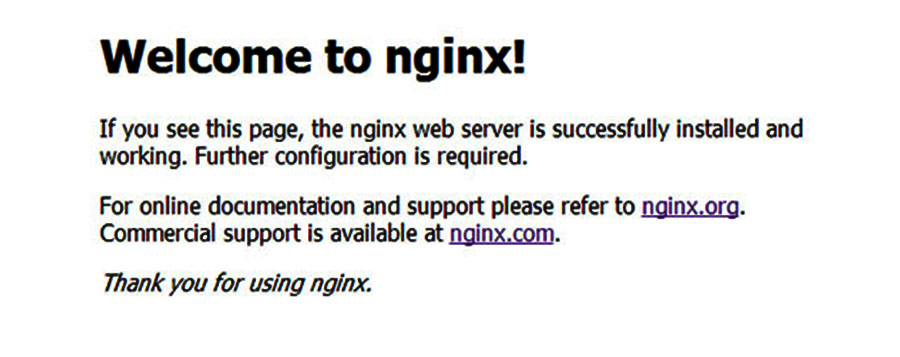
You can verify that Nginx is really running by opening your favorite web browser and entering the URL http://your-server’s-address, if it is installed, then you will see this:

nginx-default-page
Congratulation’s! You have successfully installed Nginx. Thanks for using this tutorial for installing latest stable version of Nginx mainline version web server on Ubuntu 16.04 LTS (Xenial Xerus) system. For additional help or useful information, we recommend you to check the official Nginx web site.

How To Install AnyDesk on Ubuntu 16.04 LTS

Install AnyDesk on Ubuntu 16

AnyDesk is the world’s most comfortable remote desktop application. Access all your programs, documents and files from anywhere, without having to entrust your data to a cloud service. You can say it’s an alternative of the TeamViewer, which is available free. Anydesk provides the faster remote connection than any other existing remote desktop application.

This article assumes you have at least basic knowledge of linux, know how to use the shell, and most importantly, you host your site on your own VPS. The installation is quite simple and assumes you are running in the root account, if not you may need to add ‘sudo’ to the commands to get root privileges. I will show you through the step by step installation AnyDesk on a Ubuntu 16.04 (Xenial Xerus) server.

Install AnyDesk on Ubuntu 16.04 LTS

Step 1. First make sure that all your system packages are up-to-date

sudo apt-get update
sudo apt-get upgrade

Step 2. Installing AnyDesk.

First, you can download it from its official website and install on Ubuntu:

### 32-Bit ###
https://download.anydesk.com/linux/anydesk_2.9.5-1_i386.deb
dpkg -i anydesk_2.9.5-1_i386.deb

### 64-Bit ###
https://download.anydesk.com/linux/anydesk_2.9.5-1_amd64.deb
dpkg -i anydesk_2.9.5-1_amd64.deb

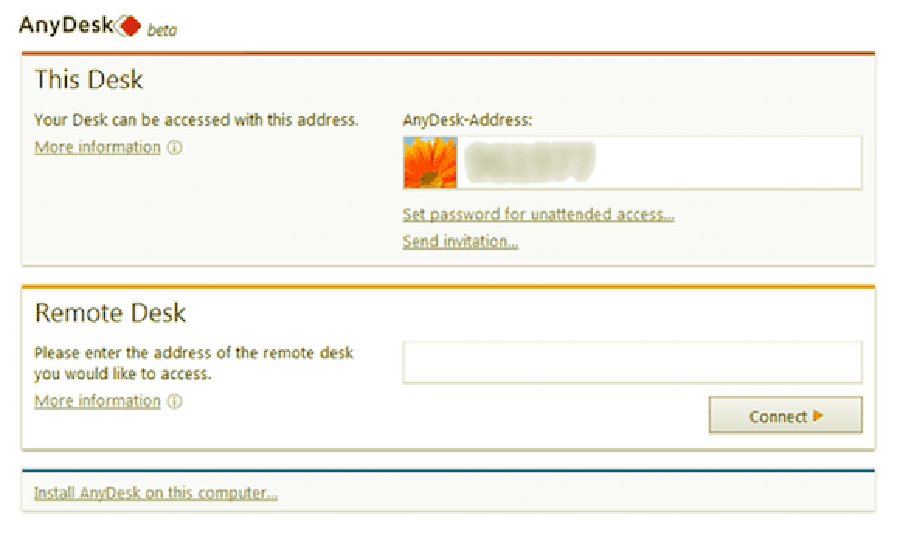
Once installation, Launch the AnyDesk on your system. You will get an AnyDesk ID for connecting from remote systems using AnyDesk. Now, You may need to set a password for unattended access. This will set a fixed password on your system, Which can be used anytime to connect.

anydesk-linux

Congratulation’s! You have successfully installed AnyDesk. Thanks for using this tutorial for installing latest stable version of AnyDesk on Ubuntu 16.04 LTS (Xenial Xerus) system. For additional help or useful information, we recommend you to check the official AnyDesk web site.

How To Install Apache CouchDB on Ubuntu 16.04 LTS

Install Apache CouchDB on Ubuntu 16

CouchDB is an open source project and NoSQL, document oriented database server. It has a document-oriented NoSQL database architecture and is implemented in the concurrency-oriented language Erlang; it uses JSON to store data, JavaScript as its query language using MapReduce, and HTTP for an API.

This article assumes you have at least basic knowledge of linux, know how to use the shell, and most importantly, you host your site on your own VPS. The installation is quite simple and assumes you are running in the root account, if not you may need to add ‘sudo’ to the commands to get root privileges. I will show you through the step by step installation Apache CouchDB open source NoSQL database management system on a Ubuntu 16.04 (Xenial Xerus) server.

Install Apache CouchDB on Ubuntu 16.04 LTS

Step 1. First make sure that all your system packages are up-to-date

sudo apt-get update
sudo apt-get upgrade

Step 2. Installing Apache CouchDB.

First, Add the official CouchDB PPA repository using add-apt-repository command:

sudo add-apt-repository ppa:couchdb/stable

Then, update apt and install Apache CouchDB:

sudo apt-get update
sudo apt-get install couchdb

Once installed, run the following commands to start and enable CouchDB on boot:

sudo systemctl enable couchdb
sudo systemctl start couchdb

Next, Fixing ownership and permission:

sudo chown -R couchdb:couchdb /usr/bin/couchdb /etc/couchdb /usr/share/couchdb
sudo chmod -R 0770 /usr/bin/couchdb /etc/couchdb /usr/share/couchdb

Step 3. Accessing Apache CouchDB

Apache CouchDB will be available on HTTP port 80 by default. Open your favorite browser and navigate to http://your_IP:5984 and complete the required the steps to finish the installation.

Congratulation’s! You have successfully installed Apache CouchDB. Thanks for using this tutorial for installing latest stable version of Apache CouchDB open source NoSQL database management on Ubuntu 16.04 LTS (Xenial Xerus) system. For additional help or useful information, we recommend you to check the official Apache CouchDB web site.

How To Install Conky on Ubuntu 16.04 LTS

Install Conky on Ubuntu 16

Conky is an open source system monitor tool for any versions system on Linux. It is able to monitor many system variables, including CPU status, swap space, temperatures, disk storage, processes, network interfaces, battery status and a host of others and then display the information on your desktop. It can also display other things like time, calendars, weather and the like.

This article assumes you have at least basic knowledge of linux, know how to use the shell, and most importantly, you host your site on your own VPS. The installation is quite simple and assumes you are running in the root account, if not you may need to add ‘sudo’ to the commands to get root privileges. I will show you through the step by step installation Conky system on a Ubuntu 16.04 (Xenial Xerus) server.

Install Conky on Ubuntu 16.04 LTS

Step 1. First make sure that all your system packages are up-to-date

sudo apt-get update
sudo apt-get upgrade

Step 2. Installing Conky.

Install Conky Manager on Ubuntu 16.04, use the following commands:

sudo apt-add-repository -y ppa:teejee2008/ppa
sudo apt update
sudo apt install conky-manager

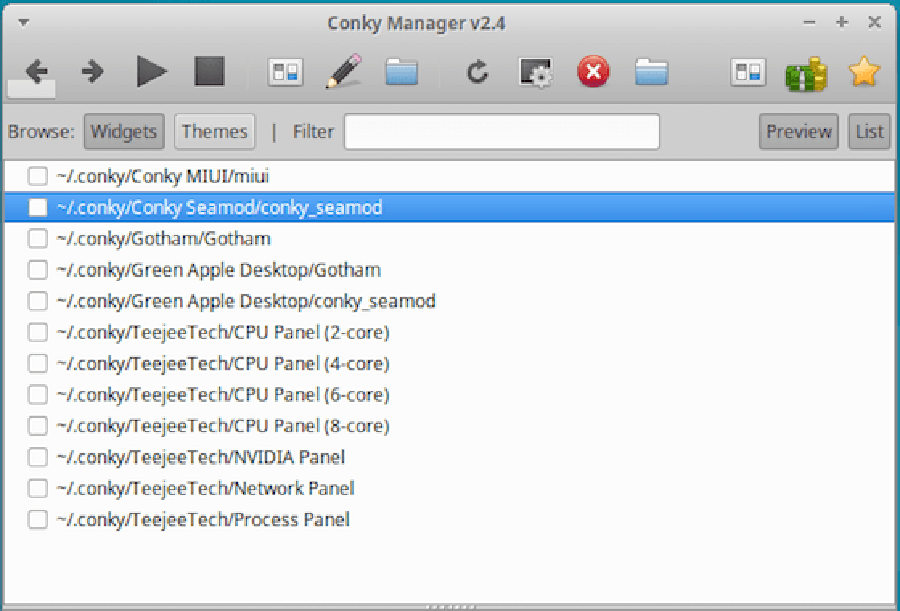
Once installed, start it from Unity Dash or your application menu.
conky-UI

Congratulation’s! You have successfully installed Conky. Thanks for using this tutorial for installing latest stable version of Conky on Ubuntu 16.04 LTS (Xenial Xerus) system. For additional help or useful information, we recommend you to check the official Conky web site.

How To Install Kanboard on Ubuntu 16.04 LTS

Install Kanboard on Ubuntu 16

Kanboard is a free and open source project management tool that uses the Kanban methodology. It focuses on minimalism and simplicity, it is mainly designed for small teams. It also helps you to manage your projects and visualize your workflow.

This article assumes you have at least basic knowledge of Linux, know how to use the shell, and most importantly, you host your site on your own VPS. The installation is quite simple and assumes you are running in the root account, if not you may need to add ‘sudo’ to the commands to get root privileges. I will show you through the step by step installation Kanboard open source project management on an Ubuntu 16.04 Xenial Xerus server.

Install Kanboard on Ubuntu 16.04 LTS

Step 1. First make sure that all your system packages are up-to-date

sudo apt-get update
sudo apt-get upgrade

Step 2. Install LAMP (Linux, Apache, MariaDB, PHP) server.

A Ubuntu 16.04 LAMP server is required. If you do not have LAMP installed, you can follow our guide here. Also install all required PHP modules:

apt-get install php7.0-mysql php7.0-curl php7.0-json php7.0-cgi php7.0 libapache2-mod-php7.0 php7.0-mcrypt php7.0-xmlrpc php7.0-gd

Step 3. Installing Kanboard.

First, Download and unzip the latest version of Kanboard:

cd /var/www/html/
wget https://kanboard.net/kanboard-latest.zip
unzip kanboard-latest.zip

We will need to change some folders permissions:

chown -R www-data:www-data /var/www/html/kanboard/

Next, copy the included config.default.php to config.php and change the database information by using these commands:

cd /var/www/html/kanboard
mv config.default.php config.php

Create a configuration file named config.php using nano editor and enter the following contents into the file:

### nano /etc/config.php

// Database driver: sqlite, mysql or postgres (sqlite by default)
define('DB_DRIVER', 'mysql');

// Mysql/Postgres username
define('DB_USERNAME', 'kanboard');

// Mysql/Postgres password
define('DB_PASSWORD', 'kanboarduser_passwd');

// Mysql/Postgres hostname
define('DB_HOSTNAME', 'localhost');

// Mysql/Postgres database name
define('DB_NAME', 'kanboarduser');

Step 4. Configuring MariaDB for Kanboard.

By default, MariaDB is not hardened. You can secure MariaDB using the mysql_secure_installation script. you should read and below each steps carefully which will set root password, remove anonymous users, disallow remote root login, and remove the test database and access to secure MariaDB:

mysql_secure_installation

Configure it like this:

- Set root password? [Y/n] y
- Remove anonymous users? [Y/n] y
- Disallow root login remotely? [Y/n] y
- Remove test database and access to it? [Y/n] y
- Reload privilege tables now? [Y/n] y

Next we will need to log in to the MariaDB console and create a database for the Kanboard. Run the following command:

mysql -u root -p

This will prompt you for a password, so enter your MariaDB root password and hit Enter. Once you are logged in to your database server you need to create a database for Kanboard installation:

MariaDB [(none)]>CREATE USER 'kanboarduser'@'localhost' IDENTIFIED BY 'password';
MariaDB [(none)]>GRANT ALL PRIVILEGES ON kanboarduser.* TO 'kanboard'@'localhost' IDENTIFIED BY 'password' WITH GRANT OPTION;
MariaDB [(none)]>FLUSH PRIVILEGES;
MariaDB [(none)]>exit;

Import the Kanboard Database Schema:

cd /var/www/html/kanboard
mysql -u kanboard -p kanboard < app/Schema/Sql/mysql.sql

Step 5. Configuring Apache web server for Kanboard.

Create a new virtual host directive in Apache. For example, create a new Apache configuration file named ‘kanboard.conf’ on your virtual server:

sudo a2enmod rewrite
touch /etc/apache2/sites-available/kanboard.conf
ln -s /etc/apache2/sites-available/kanboard.conf /etc/apache2/sites-enabled/kanboard.conf
nano /etc/apache2/sites-available/kanboard.conf

Add the following lines:

<VirtualHost *:80>
ServerAdmin [email protected]
DocumentRoot /var/www/html/kanboard
ServerName your-domain.com
ServerAlias www.your-domain.com
<Directory /var/www/html/kanboard>
Options FollowSymLinks
AllowOverride All
Order allow,deny
allow from all
</Directory>
ErrorLog /var/log/apache2/your-domain.com-error_log
CustomLog /var/log/apache2/your-domain.com-access_log common
</VirtualHost>

Now, we can restart Apache web server so that the changes take place:

sudo a2ensite kanboard
systemctl restart apache2.service

Step 5. Accessing Bolt Kanboard.

Kanboard will be available on HTTP port 80 by default. Open your favorite browser and navigate to http://yourdomain.com/kanboard or http://server-ip/kanboard.

Congratulation’s! You have successfully installed Kanboard. Thanks for using this tutorial for installing Kanboard open source project management on your Ubuntu 16.04 LTS. For additional help or useful information, we recommend you to check the official Kanboard web site.

How To Install Android Studio on Ubuntu 16.04 LTS

Install Android Studio on Ubuntu 16

Android Studio is the official Integrated Development Environment (IDE) for Android app development, based on IntelliJ IDEA. On top of IntelliJ’s powerful code editor and developer tools, Android Studio offers even more features that enhance your productivity when building Android apps

This article assumes you have at least basic knowledge of Linux, know how to use the shell, and most importantly, you host your site on your own VPS. The installation is quite simple and assumes you are running in the root account, if not you may need to add ‘sudo’ to the commands to get root privileges. I will show you through the step by step installation Android Studio on an Ubuntu 16.04 Xenial Xerus server.

Install Android Studio on Ubuntu 16.04 LTS

Step 1. First make sure that all your system packages are up-to-date

sudo apt-get update
sudo apt-get upgrade

Step 2. Installing Java 8 on Ubuntu.

First you need to make sure that your ubuntu is equipped with JAVA. Here, we are using PPA or ORACLE Java. Run the following commands

sudo add-apt-repository ppa:webupd8team/java
sudo apt-get update
sudo apt-get install java-common oracle-java8-installer

Once installed we need to set Java environment variables such as JAVA_HOME on Ubuntu 16.04:

sudo apt-get install oracle-java8-set-default
source /etc/profile

Step 3. Install Android Studio on Ubuntu.

Run the following commands to add Android Studio PPA and install:

sudo add-apt-repository ppa:maarten-fonville/android-studio
sudo apt update
sudo apt install android-studio

Once the installation is finished, you can open Android Studio from Unity Dash or your preferred app launcher or You can access android studio from the dash or app launcher or use the following command to start:

/opt/android-studio/bin/studio.sh

Congratulation’s! You have successfully installed Android Studio. Thanks for using this tutorial for installing Android Studio on your Ubuntu 16.04 LTS. For additional help or useful information, we recommend you to check the official Android Studio web site.