How To Install Git on Ubuntu 18.04 LTS

Install Git on Ubuntu 18

Git is a free and open source distributed version control system . Git 2.16.2 comes with the large number of updates verses previous release 2.15. It is designed to handle a small to very large projects with speed and efficiency.

This article assumes you have at least basic knowledge of Linux, know how to use the shell, and most importantly, you host your site on your own VPS. The installation is quite simple and assumes you are running in the root account, if not you may need to add ‘sudo’ to the commands to get root privileges. I will show you through the step by step installation Git on a Ubuntu 18.04 (Bionic Beaver) server.

Install Git on Ubuntu 18.04 LTS Bionic Beaver

Step 1. First make sure that all your system packages are up-to-date by running these following apt-get commands in the terminal.

sudo apt-get update
sudo apt-get upgrade

Step 2. Installing Git on Ubuntu 18.04 LTS.

Method 1. Install Git on Ubuntu from repository.


sudo apt install git -y

To check current version installed of Git use following command:

[[email protected] ~]# git --version
git version 2.15.1

Method 2. Install Git on Ubuntu from Source Code

First, install all prerequisites:

sudo apt install make libssl-dev libghc-zlib-dev libcurl4-gnutls-dev libexpat1-dev gettext unzip
sudo wget https://github.com/git/git/archive/v2.16.2.zip
sudo unzip v2.16.2.zip

Next, compile the previously downloaded git source code and install git binaries:

cd git-2.16.2
make prefix=/usr/local all
sudo make prefix=/usr/local install

Confirm Git the installation . Run the following command to verify which version of git is installed:

[[email protected] ~]# git --version
git version 2.16.2

Congratulation’s! You have successfully installed Git. Thanks for using this tutorial for installing Git in Ubuntu 18.04 LTS (Bionic Beaver) systems. For additional help or useful information, we recommend you to check the official Git web site.

How To Install VMware Workstation on Ubuntu 18.04 LTS

Install VMware Workstation on Ubuntu 18

VMware Workstation is the most popular Virtualization software used at the desktop level on Linux like operating systems and Microsoft Windows. It allows the us to create and run multiple Virtual machines simultaneously. VMware Workstation is not an open source or free software so we need to buy its license key, though we can use its trail version for 30 days then later you can apply its license key.

This article assumes you have at least basic knowledge of Linux, know how to use the shell, and most importantly, you host your site on your own VPS. The installation is quite simple and assumes you are running in the root account, if not you may need to add ‘sudo’ to the commands to get root privileges. I will show you through the step by step installation VMware Workstation on an Ubuntu 18.04 Bionic Beaver server.

Install VMware Workstation on Ubuntu 18.04 LTS Bionic Beaver

Step 1. First make sure that all your system packages are up-to-date by running these following apt-get commands in the terminal.

sudo apt-get update
sudo apt-get upgrade
sudo apt-get install gcc build-essential

Step 2. Installing VMware Workstation on Ubuntu 18.04 LTS.

First download the Vmware Workstation 14 Pro bundle package here.

Once the VMware workstation bundle file is downloaded, set the executable permissions on it with the below chmod command:

chmod a+x VMware-Workstation-Full-14.1.2-8497320.x86_64.bundle

Run the commands below to execute the installation of Vmware Workstation 14 pro by running the .bundle package. Refer the command below:

sudo ./VMware-Workstation-Full-14.1.2-8497320.x86_64.bundle

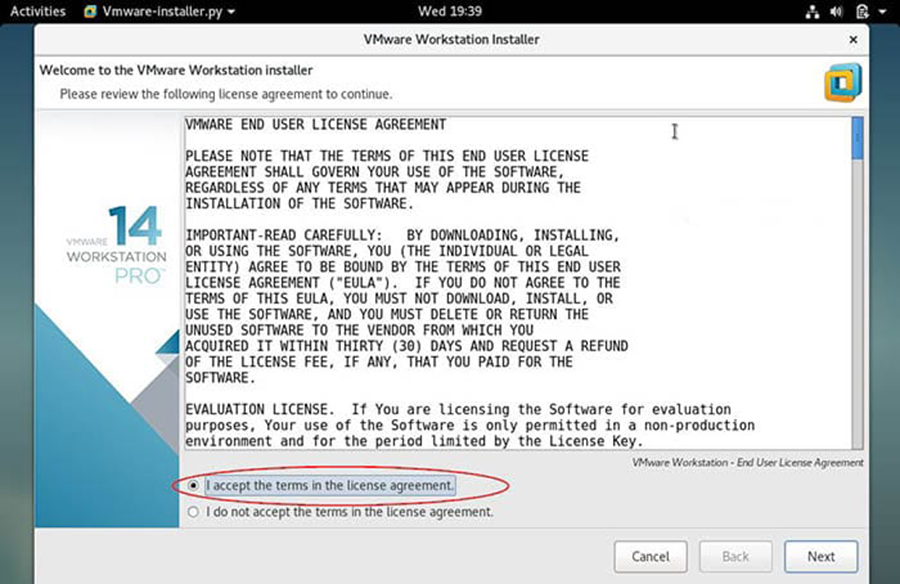
Accept the End User License Agreement:

End-User-License-Agreement-VMware-Workstation

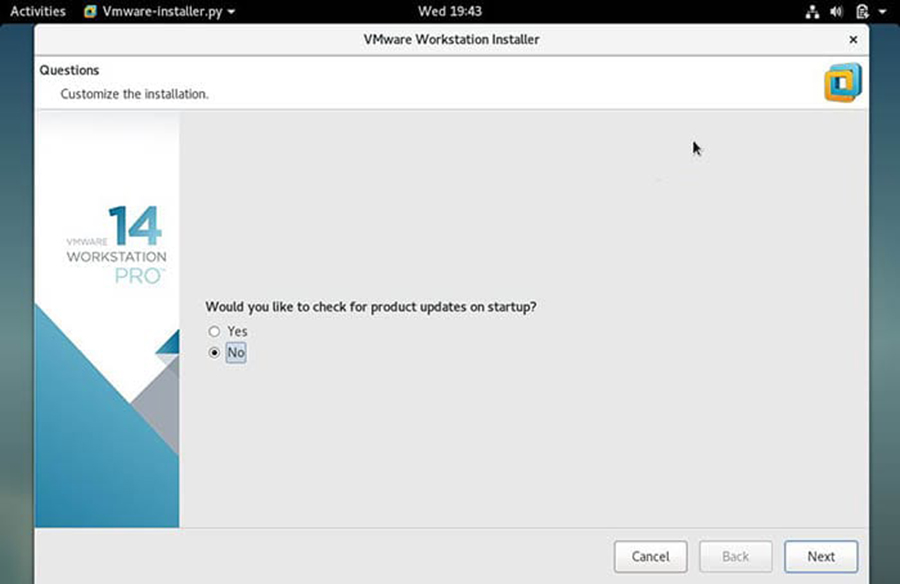
Click on Next and disable product updates on startup:

VMware-Workstation-Product-Updates 2

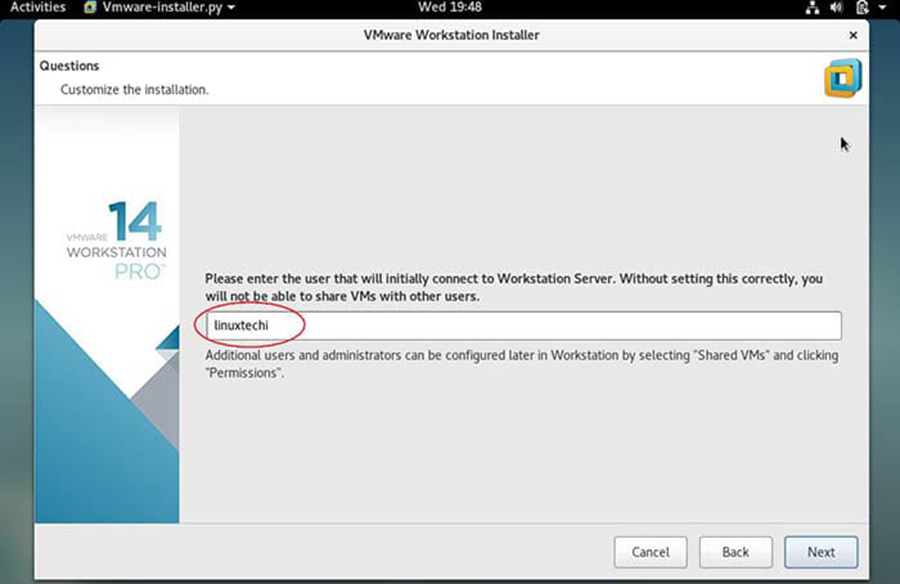
Specify the User Name which will have rights to connect to VMware workstation, in my case I using ‘wpcademy‘ as user name:

Linuxtechi-User-VMware-Workstation 3

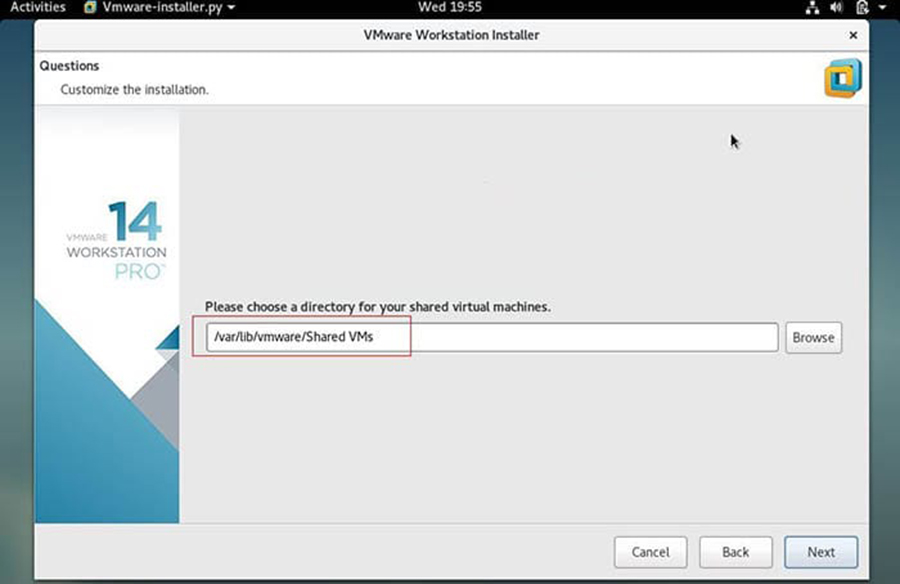
Click on next to proceed, you can also keep the default path. In my case I am also keeping the default directory:

Virtual-Machine-Storing-Path-VMware-WorkStation 4

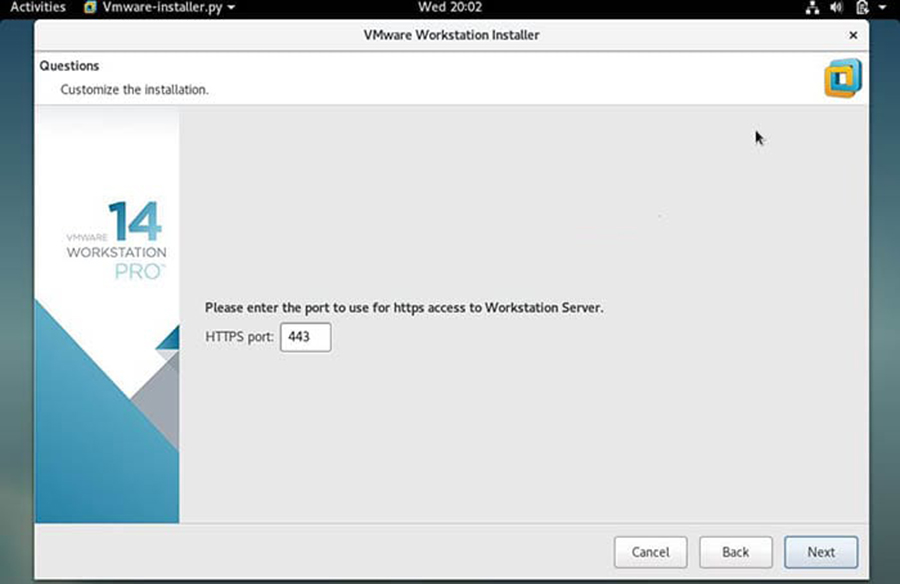
Specify the HTTPs port or keep default one:

HTTPs-Port-Debian9-VMware-Workstation 5

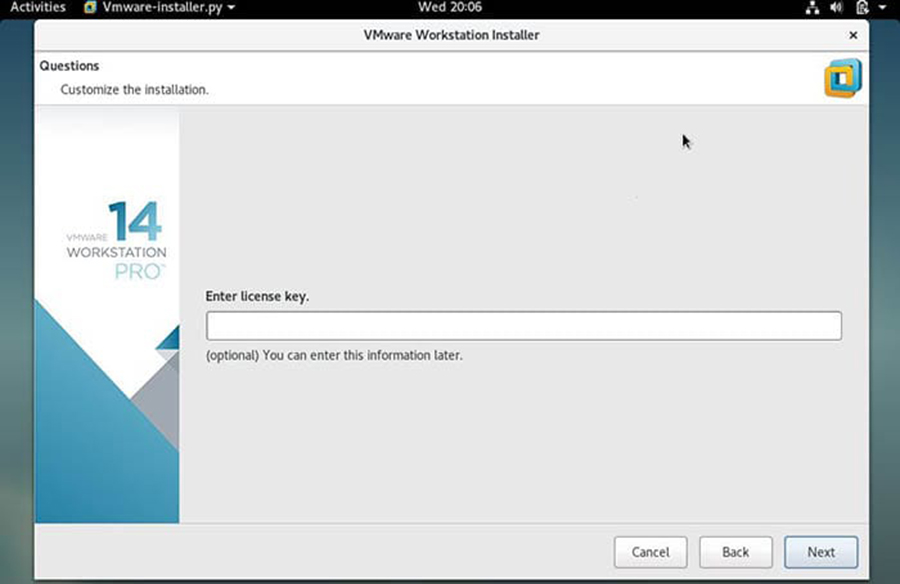
Enter the License key in case you have already buy its license, else you can leave it blank:

License-Key-Debian9-VMware-Workstation 6

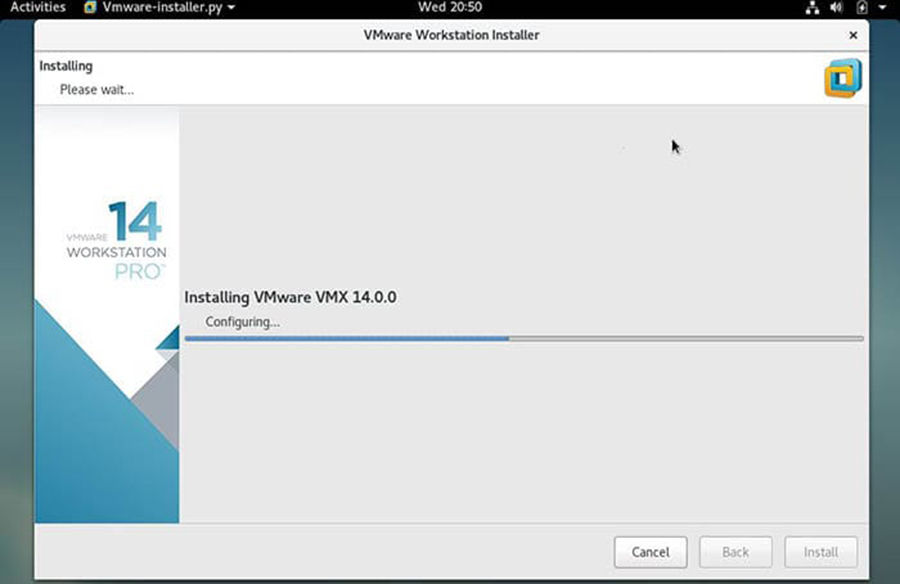
In the next window, click on ‘Install‘ option to start its installation:

VMware-Workstation-Installation-Progress7
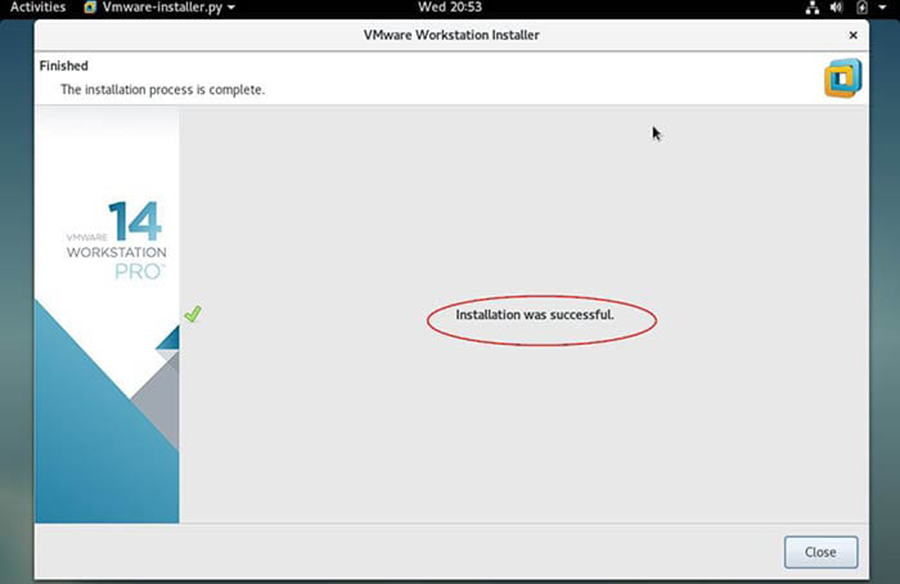
Once the Installation is successful, we will get the below window:

VMware-Workstation-Installation-Completed8

Congratulation’s! You have successfully installed VMware Workstation. Thanks for using this tutorial for installing VMware Workstation on your Ubuntu 18.04 Bionic Beaver system. For additional help or useful information, we recommend you to check the official VMware web site.

How To Install Node.js on Ubuntu 18.04 LTS

Install Node.js on Ubuntu 18

Node.js is a Javascript platform for programming that enables users to build network applications very quickly. If you are using Javascript on both the front-end and the back-end, it means your development can be much more consistent and be designed within the same system.

This article assumes you have at least basic knowledge of Linux, know how to use the shell, and most importantly, you host your site on your own VPS. The installation is quite simple and assumes you are running in the root account, if not you may need to add ‘sudo’ to the commands to get root privileges. I will show you through the step by step installation Node.js on a Ubuntu 18.04 (Bionic Beaver) server.

Install Node.js on Ubuntu 18.04 LTS Bionic Beaver

Step 1. First make sure that all your system packages are up-to-date by running these following apt-get commands in the terminal.

sudo apt-get update
sudo apt-get upgrade

Step 2. Installing Node.js on Ubuntu 18.04 LTS.

Method 1. Install Node.js using Ubuntu Repository.


apt install nodejs

This will install Node.js, however we still need to install the package manager (NPM) so that 3rd party modules can be installed:

apt install npm

Verify the installation:

### nodejs --version
v8.10.0

Method 2. Install Node.js using PPA.


curl -sL https://deb.nodesource.com/setup_10.x -o nodesource_setup.sh

You can inspect the contents of this script with nano:

nano nodesource_setup.sh

Run the script:

sudo bash nodesource_setup.sh

The PPA will be added to your configuration and your local package cache will be updated automatically. After running the setup script from Nodesource, you can install the Node.js package:

apt install nodejs

In order for some npm packages to work (those that require compiling code from source, for example), you will need to install the build-essential package:

apt install build-essential

Method 3. Install Node.js using NVM (Node.js Version Manager).

Using nvm, you will be able to install multiple, self-contained versions of Node.js which will means you can control your environment much easier. It will give you on-demand access to the latest versions of Node.js, but it will also allow you to specify previous releases that your app may need. So, first we’ll want to update our local repository index and then install libssl-dev and build-essential . That can be done by running the below commands in a terminal or shell:

apt-get update
apt-get install build-essential libssl-dev

Once those are installed you need to download the setup script for NVM. Typically you can grab this from their github page. Though at the time of this writing the newest version is in the command below:

wget -qO- https://raw.githubusercontent.com/creationix/nvm/v0.31.1/install.sh

Verify that the script is indeed the one you want and then run:

bash install.sh

To begin the install of NVM. Once it finishes you will need to reload your profile to have your changes take effect without logging back in to your server again. Run the command:

source ~/.profile

Now as we have nvm installed, we can install isolated Node.js versions. To find out the versions of Node.js that are available for installation, we need to type:

[[email protected] ~]# nvm ls-remote
. . .
v5.8.0
v5.9.0
v5.9.1
v5.10.0
v5.10.1
v5.11.0
v6.0.0


Install the version you want with the command:

nvm install [your version]

Example:

nvm install 6.0.0

Configure nvm to use the version of Node.js that you just downloaded, the command is:

nvm use 6.0.0

To verify the current version of Node.js installed, the command is:

node -v

Congratulation’s! You have successfully installed Node.js. Thanks for using this tutorial for installing Node.js on Ubuntu 18.04 LTS (Bionic Beaver) system. For additional help or useful information, we recommend you to check the official Node.js web site.

How To Install Pip on Ubuntu 18.04 LTS

Install Pip on Ubuntu 18

The Pip command is a tool for installing and managing Python packages, such as those found in the Python Package Index. With the help of pip you can also install the package of particular version. Most importantly pip has a feature to manage full lists of packages and corresponding version numbers, possible through a “requirements” file. It performs the same basic job as easy_install, but with some extra features.

This article assumes you have at least basic knowledge of linux, know how to use the shell, and most importantly, you host your site on your own VPS. The installation is quite simple and assumes you are running in the root account, if not you may need to add ‘sudo’ to the commands to get root privileges. I will show you through the step by step installation Pip Python on a Ubuntu 18.04 LTS (Bionic Beaver) server.

Install Pip on Ubuntu 18.04 LTS Bionic Beaver

Step 1. First make sure that all your system packages are up-to-date by running these following apt-get commands in the terminal.

sudo apt-get update
sudo apt-get upgrade

Step 2. Installing PIP on Ubuntu 18.04 LTS.

Install the pip by using apt-get command:

apt install python-pip

Once the installation is completed you can verify that it was successful by using the following command:

pip --version

Step 3. Basic Usage pip command.

After installing python-pip package, the pip command will be available on system. There are multiple options available with pip command:

To install new python package type:

pip install Package_Name

To uninstall python package installed by pip type:

pip uninstall Package_Name

To search python package type:

pip search Package_Name

For more Pip options and usage examples you can use the –help flag:

[[email protected] ~]# pip --help

Usage:   
  pip <command></command> [options]

Commands:
  install                     Install packages.
  uninstall                   Uninstall packages.
  freeze                      Output installed packages in requirements format.
  list                        List installed packages.
  show                        Show information about installed packages.
  search                      Search PyPI for packages.
  wheel                       Build wheels from your requirements.
  zip                         DEPRECATED. Zip individual packages.
  unzip                       DEPRECATED. Unzip individual packages.
  bundle                      DEPRECATED. Create pybundles.
  help                        Show help for commands.

General Options:
  -h, --help                  Show help.
  -v, --verbose               Give more output. Option is additive, and can be used up to 3 times.
  -V, --version               Show version and exit.
  -q, --quiet                 Give less output.
  --log-file            Path to a verbose non-appending log, that only logs failures. This
                              log is active by default at /home/sharad/.pip/pip.log.
  --log                 Path to a verbose appending log. This log is inactive by default.
  --proxy              Specify a proxy in the form [user:passwd@]proxy.server:port.
  --timeout              Set the socket timeout (default 15 seconds).
  --exists-action     Default action when a path already exists: (s)witch, (i)gnore,
                              (w)ipe, (b)ackup.
  --cert                Path to alternate CA bundle.
[[email protected] ~]#

Congratulation’s! You have successfully installed Pip. Thanks for using this tutorial for installing Pip Python on Ubuntu 18.04 LTS Bionic Beaver system. For additional help or useful information, we recommend you to check the official Python web site.

How To Install Go on Ubuntu 18.04 LTS

Install Go on Ubuntu 18

Golang is an open source programming language that makes it easy to build simple, reliable, and efficient software. In a nutshell, Go is an elegant language with a clean and concise specifications that are readable and comprehensive. One of the major strengths of Golang is its concurrency, which means multiple process of the Go applications can run at same time.

This article assumes you have at least basic knowledge of Linux, know how to use the shell, and most importantly, you host your site on your own VPS. The installation is quite simple and assumes you are running in the root account, if not you may need to add ‘sudo’ to the commands to get root privileges. I will show you through the step by step installation Go programming language on Ubuntu 18.04 LTS Bionic Beaver server.

Install Go on Ubuntu 18.04 LTS Bionic Beaver

Step 1. First, make sure that all your system packages are up-to-date by running these following apt-get commands in the terminal.

sudo apt-get update
sudo apt-get upgrade

Step 2. Installing Go on Ubuntu 18.04 LTS.

Method 1. Install Go using Golang installer.


wget -q https://storage.googleapis.com/golang/getgo/installer_linux

Make the Golang installation executable:

chmod +x installer_linux

Then, run the installer_linux executable to install Go on your Ubuntu system:

### ./installer_linux 
Welcome to the Go installer!
Downloading Go version go1.10 to /home/linuxconfig/.go
This may take a bit of time...
Downloaded!
Setting up GOPATH
GOPATH has been set up!

One more thing! Run `source /home/wpcademy/.bash_profile` to persist the
new environment variables to your current session, or open a
new shell prompt.

As prompted by installer, run the source command to update your current shell session variables to include the new GOPATH, or simply open a new shell session:

source /home/wpcademy/.bash_profile

You can confirm with the Go version installed:

### go version
go version go1.10 linux/amd64

Method 2. Install Go from Ubuntu repostiory.


apt install golang

Next, we first need to set GOPATH:

echo 'export GOPATH=$HOME/go' >> ~/.bashrc 
echo 'export PATH=${PATH}:${GOPATH}/bin' >> ~/.bashrc 
source ~/.bashrc

Method 3. Install Go using Snap.


snap install go --classic

Next, set GOPATH:

echo 'export GOPATH=$HOME/go' >> ~/.bashrc 
echo 'export PATH=${PATH}:${GOPATH}/bin' >> ~/.bashrc 
source ~/.bashrc

Check for installed version:

### go version
go version go1.10 linux/amd64

Congratulations! You have successfully installed Go. Thanks for using this tutorial for installing Go programming language in Ubuntu 18.04 LTS Bionic Beaver systems. For additional help or useful information, we recommend you to check the official Go programming language web site.

How To Install Nginx on Ubuntu 18.04 LTS

Install Nginx on Ubuntu 18

Nginx is a powerful web server software that can be used on your server. It is also known for its high performance and low memory usage which will allow fewer resources to be used but getting the job done efficiently. A popular set up is to use it as a proxy for Apache, which can then serve application requests.

This article assumes you have at least basic knowledge of Linux, know how to use the shell, and most importantly, you host your site on your own VPS. The installation is quite simple and assumes you are running in the root account, if not you may need to add ‘sudo’ to the commands to get root privileges. I will show you through the step by step installation Nginx on a Ubuntu 18.04 (Bionic Beaver) server.

Install Nginx on Ubuntu 18.04 LTS Bionic Beaver

Step 1. First make sure that all your system packages are up-to-date by running these following apt-get commands in the terminal.

sudo apt-get update
sudo apt-get upgrade

Step 2. Installing Nginx.

Installing nginx package on Ubuntu 18.04 Bionic Beaver) is as easy as running:

apt-get install nginx

After that, run the commands to enable Nginx to automatically startup when your server starts:

sudo systemctl stop nginx.service
sudo systemctl start nginx.service
sudo systemctl enable nginx.service

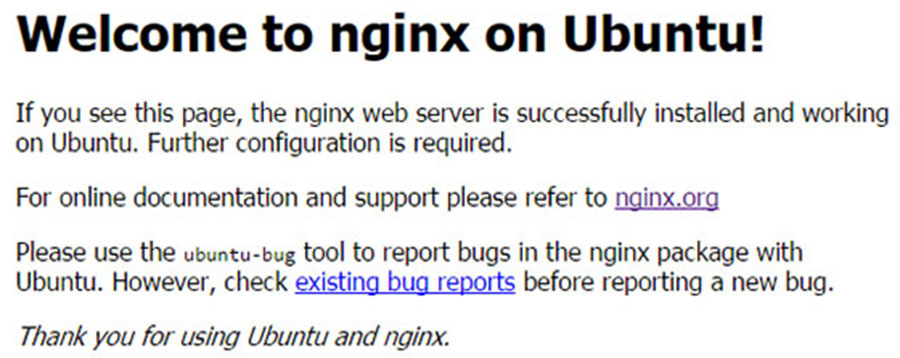
To test Nginx setup, open your browser and browse to the server hostname or IP address and you should see Nginx default test page as shown below:

Nginx-Default-Page-Ubuntu

Step 3. Configure Nginx.

Nginx site-specific configuration files are kept in /etc/nginx/conf.d/. Generally you will want a separate file in this directory for each domain or subdomain you will be hosting.

Copy the default configuration file. Replace wpcademy.com with your website’s domain name or your public IP address.


sudo cp /etc/nginx/conf.d/default.conf /etc/nginx/conf.d/https://wpcademy.com.conf

Open your site’s configuration file in a nano text editor. Replace example.com in the server_name directive with your site’s domain name or IP address. If you already have content ready to serve (such as a WordPress installation) replace the path in the root directive with the path to your site’s content:


server {
 listen 80;
 server_name wpcademy.com;

#charset koi8-r;
 #access_log /var/log/nginx/host.access.log main;

location / {
 root /usr/share/nginx/html;
 index index.html index.htm;
 }

#error_page 404 /404.html;

# redirect server error pages to the static page /50x.html
 #
 error_page 500 502 503 504 /50x.html;
 location = /50x.html {
 root /usr/share/nginx/html;
 }
}

Test your configuration for errors:

nginx -t

Step 4. Configure the Firewall for Nginx.
Firewall software needs to be adjusted to allow access to the service. Nginx registers itself as a service with ufw upon installation, making it straightforward to allow Nginx access:

sudo ufw allow 'Nginx HTTP'

Congratulations! You have successfully installed Nginx. Thanks for using this tutorial for installing Nginx web server in Ubuntu 18.04 LTS (Bionic Beaver) system. For additional help or useful information, we recommend you to check the official Nginx web site.

How To Install Express.js Web Server on Ubuntu 16.04 LTS

Install Express.js Web Server on Ubuntu 16

Express is a NodeJS web application framework. It provides robust set of features and can be used for building single-page, multi-page as well as hybrid web-based applications.

This article assumes you have at least basic knowledge of Linux, know how to use the shell, and most importantly, you host your site on your own VPS. The installation is quite simple and assumes you are running in the root account, if not you may need to add ‘sudo’ to the commands to get root privileges. I will show you through the step by step installation Express.js Web Server on an Ubuntu 16.04 Xenial Xerus server.

Install Express.js Web Server on Ubuntu 16.04 LTS

Step 1. First make sure that all your system packages are up-to-date by running these following apt-get commands in the terminal.

sudo apt-get update
sudo apt-get upgrade

Step 2. Installing Node.JS.

First, add the Node.JS official repository with the command below:

curl -sL https://deb.nodesource.com/setup_8.x | -E bash -

Install Node.JS using following command:

apt-get install nodejs

Step 3. Installing Express.JS on Ubuntu 16.04 LTS.

Install the Express.JS package, the command is:

npm install express

To make life easier, we will use a neat little module called express-generator, To install Express Generator, simply execute:

npm install -g express-generator

We are going to install “EJS” rendering engine for our project, you can set it up using the following command:

express -v ejs wpcademy

It will create a new directory (wpcademy) in our project. Now you have to switch into it and execute the following command to make sure that you have all of the required modules:

cd wpcademy/
npm install

Now you can start your Express.JS project using the following command:

npm start

Step 4. Accessing Express.JS.

Express.JS will be available on HTTP port 3000 by default. Open your favorite browser and navigate to http://yourdomain.com:3000 or http://server-ip:3000 and complete the required the steps to finish the installation. If you are using a firewall, please open port 3000 to enable access to the control panel.

Congratulation’s! You have successfully installed Express.js. Thanks for using this tutorial for installing Express.js Web Server on your Ubuntu 16.04 LTS. For additional help or useful information, we recommend you to check the official Express.js web site.