How To Install ELK Stack on Ubuntu 18.04 LTS

Install ELK Stack on Ubuntu 18

ELK stack is a popular, open source log management platform. It is used as a centralized management for storing, analyzing and viewing of logs. Centralized management makes it easier to study the logs and identify issues if any for any number of servers.

This article assumes you have at least basic knowledge of Linux, know how to use the shell, and most importantly, you host your site on your own VPS. The installation is quite simple and assumes you are running in the root account, if not you may need to add ‘sudo’ to the commands to get root privileges. I will show you through the step by step installation ELK Stack on an Ubuntu 18.04 Bionic Beaver server.

Install ELK Stack on Ubuntu 18.04 LTS Bionic Beaver

Step 1. First make sure that all your system packages are up-to-date by running these following apt-get commands in the terminal.

sudo apt-get update
sudo apt-get upgrade

Step 2. Installing Java on Ubuntu 18.04 LTS.

Now install the Java by using the following command:

apt -y install oracle-java8-installer

Next, you can also set the JAVA_HOME and other defaults by installing oracle-java8-set-default:

apt -y install oracle-java8-set-default

Then, You can now verify if the JAVA_HOME variable is set by running:

echo "$JAVA_HOME"

Verify the Java version:

[[email protected] ~]# java -version
openjdk version "1.8.0_181"
OpenJDK Runtime Environment (build 1.8.0_181-8u181-b11-1~deb9u1-b11)
OpenJDK 64-Bit Server VM (build 25.181-b11, mixed mode)

Step 3. Installing Elasticsearch on Ubuntu 18.04 LTS.

First, install Elasticsearch using the apt package manager from the official Elastic repository:

wget -qO - https://packages.elastic.co/GPG-KEY-elasticsearch | sudo apt-key add -
echo "deb http://packages.elastic.co/elasticsearch/2.x/debian stable main" | sudo tee -a /etc/apt/sources.list.d/elasticsearch-2.x.list
apt-get update

Then, install Elasticsearch with apt using the following command:

apt-get -y install elasticsearch

Start the Elasticsearch service and set it to automatically start on boot:

systemctl restart elasticsearch
systemctl enable elasticsearch

Elasticsearch is now installed. Edit it’s configurations now, using following commands:

nano /etc/elasticsearch/elasticsearch.yml

Step 4. Installing Kibana on Ubuntu 18.04 LTS.

First, create the Kibana source list:

echo "deb http://packages.elastic.co/kibana/4.5/debian stable main" | sudo tee -a /etc/apt/sources.list.d/kibana-4.5.x.list

Now install Kibana with this command:

apt-get update
apt-get -y install kibana

Once the installation is completed, open the kibana.yml file and restrict the remote access to the Kibana instance:

nano /etc/kibana/kibana.yml

# Specifies the address to which the Kibana server will bind. IP addresses and host names are both valid values.
# The default is 'localhost', which usually means remote machines will not be able to connect.
# To allow connections from remote users, set this parameter to a non-loopback address.
server.host: "localhost"

Start the Kibana service and set it to start automatically on boot:

systemctl start kibana
systemctl enable kibana

Step 5. Installing Logstash on Ubuntu 18.04 LTS.

First, create the Logstash source list:

echo 'deb http://packages.elastic.co/logstash/2.2/debian stable main' | sudo tee /etc/apt/sources.list.d/logstash-2.2.x.list

Next, Install Logstash using the apt package manager:

apt-get install logstash

Once the Logstash package is installed start the Logstash service and set it to start automatically on boot:

systemctl restart logstash
systemctl enable logstash

Step 6. Install and configure Nginx as a reverse proxy.

Next, use Nginx as a reverse proxy to access Kibana from the public IP address. To install Nginx, run:

apt-get install nginx

Create a basic authentication file with the openssl command:

echo "admin:`openssl passwd -apr1 YourPasswd`" | sudo tee -a /etc/nginx/htpasswd.kibana

Then, create a virtual host configuration file for the Kibana instance:

rm -f /etc/nginx/sites-enabled/default
nano /etc/nginx/sites-available/kibana
rm-f/etc/nginx/sites-enabled/default
nano/etc/nginx/sites-available/kibana
server {
listen 80 default_server;
server_name _;
return 301 https://$server_name$request_uri;
}

server {
listen 443 default_server ssl http2;

server_name _;

ssl_certificate /etc/ssl/certs/ssl-cert-snakeoil.pem;
ssl_certificate_key /etc/ssl/private/ssl-cert-snakeoil.key;
ssl_session_cache shared:SSL:10m;

auth_basic "Restricted Access";
auth_basic_user_file /etc/nginx/htpasswd.kibana;

location / {
proxy_pass http://localhost:5601;
proxy_http_version 1.1;
proxy_set_header Upgrade $http_upgrade;
proxy_set_header Connection 'upgrade';
proxy_set_header Host $host;
proxy_cache_bypass $http_upgrade;
}
}

Creating a symbolic link and test the Nginx configuration:

ln -s /etc/nginx/sites-available/kibana /etc/nginx/sites-enabled/kibana
nginx -t

Restart the Nginx service and set it to start automatically on boot:

systemctl restart nginx
systemctl enable nginx

Step 7. Accessing Kibana.

You can now access the kibana interface by opening your browser and typing:

https://Your-IpAddress

Congratulation’s! You have successfully installed ELK Stack. Thanks for using this tutorial for installing ELK Stack on your Ubuntu 18.04 LTS Bionic Beaver. For additional help or useful information, we recommend you to check the official ELK Stack web site.


How To Install Varnish Cache on Ubuntu 18.04 LTS

Varnish Cache on Ubuntu 18

Varnish Cache is a powerful open source HTTP accelerator that can be installed in front of any Webserver such as Apache or Nginx. Varnish Cache can improve overall performance of your web server by caching contents. The Varnish cache stores the copy of user request’s and serves the same page when the user revisits the webpage. It makes your website really fast and accelerate your web site performance up-to 300 – 1000x (means 80% or more).

This article assumes you have at least basic knowledge of Linux, know how to use the shell, and most importantly, you host your site on your own VPS. The installation is quite simple and assumes you are running in the root account, if not you may need to add ‘sudo’ to the commands to get root privileges. I will show you through the step by step installation Varnish Cache on a Ubuntu 18.04 (Bionic Beaver) server.

Install Varnish Cache on Ubuntu 18.04 LTS Bionic Beaver

Step 1. First make sure that all your system packages are up-to-date by running these following apt-get commands in the terminal.

sudo apt-get update
sudo apt-get upgrade

Step 2. Install Apache web server.

For this part we will be assuming that you have already installed Apache on your server and have it running properly. If not write this command in your terminal:

sudo apt-get install apache2

Step 3. Installing Varnish on Ubuntu 18.04 LTS.

Install Varnish using apt-get command:

apt-get install varnish

After the installation is finished, start and enable varnish.service using the systemctl command:

systemctl start varnish.service
systemctl enable varnish.service

Step 4. Configuring Varnish Cache on Ubuntu 18.04 Bionic Beaver.

Varnish is automatically configured to server content over port 80 and fetch contents from Apache on port 8080, we need to update Apache to serve content over port 8080:

# If you just change the port or add more ports here, you will likely also
# have to change the VirtualHost statement in
# /etc/apache2/sites-enabled/000-default.conf

NameVirtualHost 127.0.0.1:8080
Listen 127.0.0.1:8080

If you have any virtual hosts configured, you will need to update these as well – ensure your configuration looks like this:

<VirtualHost 127.0.0.1:8080>

We need to configure varnish to run on port 80. First, create a file called varnish.service inside the /etc/systemd/system directory:

### nano /etc/systemd/system/varnish.service

Then, add the following configuration:

[Service]
ExecStart=/usr/sbin/varnishd -j unix,user=vcache -F -a :80 -T localhost:6082 -f /etc/varnish/default.vcl -S /etc/varnish/secret -s malloc,256m

Once you save and exit out of that file, open up the default.vcl file:

### nano /etc/varnish/default.vcl
backend default {
    .host = "127.0.0.1";
    .port = "8080";
}

Restart the Apache and Varnish service for the changes to take effect:

systemctl restart apache2.service
systemctl restart varnish.service

You can check to see if varnish is working by typing the following command:

varnishstat

Step 5. Testing Varnish.

The test consists in making a HTTP request via curl and verifying that it is handled by Varnish:

[[email protected] ~ ]# curl -I 192.168.10.100
 HTTP/1.1 403 Forbidden
 Date: Mon, 17 March 2018 24:06:10 GMT
 Server: Apache/2.4.6 (Ubuntu) PHP/7.0.16
 Last-Modified: Thu, 16 Dec 2017 19:30:58 GMT
 ETag: "1321-5758ramona728280"
 Accept-Ranges: bytes
 Content-Length: 4897
 Content-Type: text/html; charset=UTF-8
 X-Varnish: 32779
 Age: 4
 Via: 1.1 varnish-v5
 Connection: keep-alive

Congratulation’s! You have successfully installed Varnish. Thanks for using this tutorial for installing Varnish Cache on Ubuntu 18.04 LTS (Bionic Beaver) system. For additional help or useful information, we recommend you to check the official Varnish web site.

[youtube https://www.youtube.com/watch?v=fGD14ChpcL4]

How To Install Apache Tomcat on Ubuntu 18.04 LTS

Install Apache Tomcat on Ubuntu 18

Apache Tomcat is an open source web server and servlet container developed by the Apache Software Foundation. It implements the Java Servlet, JavaServer Pages (JSP), Java Unified Expression Language and Java WebSocket specifications from Sun Microsystems and provides a web server environment for Java code to run in.

This article assumes you have at least basic knowledge of linux, know how to use the shell, and most importantly, you host your site on your own VPS. The installation is quite simple and assumes you are running in the root account, if not you may need to add ‘sudo’ to the commands to get root privileges. I will show you through the step by step installation Apache Tomcat 9 on a Ubuntu 18.04 (Bionic Beaver) server.

Install Apache Tomcat on Ubuntu 18.04 LTS Bionic Beaver

Step 1. First make sure that all your system packages are up-to-date by running these following apt-get commands in the terminal.

sudo apt-get update
sudo apt-get upgrade

Step 2. Installing Java.

Apache Tomcat requires Java to be installed on your server. By default, Java is not available in Ubuntu’s repository. Add the Oracle Java PPA to Apt with the following command:

sudo add-apt-repository ppa:webupd8team/java
sudo apt install oracle-java8-installer
sudo apt install oracle-java8-set-default

Verify the Java version by running the following command:

java -version

Step 2. Installing Apache Tomcat on Ubuntu 18.04 LTS.

First thing to do is to go to Apache Tomcat’s download page and download the latest stable version of Apache Tomcat, At the moment of writing this article it is version 9:

cd /opt
wget http://www-us.apache.org/dist/tomcat/tomcat-9/v9.0.10/bin/apache-tomcat-9.0.10.zip
tar -xvf apache-tomcat-9.0.10.zip
mv apache-tomcat-9.0.8 /opt/tomcat9

Next, Create a directory for Tomcat files:

sudo useradd -r tomcat9 --shell /bin/false

Then give the user control of the directory:

sudo chown -R tomcat9 /opt/tomcat9

Step 3. Configure Apache Tomcat.

Configure Tomcat users so they can access admin/manager sections. You can do this by adding the users in the conf/tomcat-users.xml file with your favorite text editor. Add this text to the file:

nano /opt/tomcat9/conf/tomcat-users.xml

Place the following two lines just above the last line.

<!-- user manager can access only manager section -->
<role rolename="manager-gui" />
<user username="manager" password="_SECRET_PASSWORD_" roles="manager-gui" />

<!-- user admin can access manager and admin section both -->
<role rolename="admin-gui" />
<user username="admin" password="_SECRET_PASSWORD_" roles="manager-gui,admin-gui" />

Next, run the commands below to create a server account for Tomcat:

nano /etc/systemd/system/tomcat.service

Add lines below into the file and save:

[Unit]
Description=Tomcat9
After=network.target
[Service]
Type=forking
User=tomcat9
Group=tomcat9
Environment=CATALINA_PID=/opt/tomcat9/tomcat9.pid
Environment=JAVA_HOME=/usr/lib/jvm/java-8-oracle/
Environment=CATALINA_HOME=/opt/tomcat9
Environment=CATALINA_BASE=/opt/tomcat9
Environment="CATALINA_OPTS=-Xms512m -Xmx512m"
Environment="JAVA_OPTS=-Dfile.encoding=UTF-8 -Dnet.sf.ehcache.skipUpdateCheck=true -XX:+UseConcMarkSweepGC -XX:+CMSClassUnloadingEnabled -XX:+UseParNewGC"
ExecStart=/opt/tomcat9/bin/startup.sh
ExecStop=/opt/tomcat9/bin/shutdown.sh
[Install]
WantedBy=multi-user.target

Save and exit and reload the systemd service:

systemctl daemon-reload
systemctl start tomcat.service
systemctl enable tomcat.service

You can verify the service running, by default tomcat runs on port no 8080.

[root@wpcademy ~]# netstat -antup | grep 8080
tcp        0      0 0.0.0.0:8080                0.0.0.0:*                   LISTEN

Step 4. Accessing Apache Tomcat.

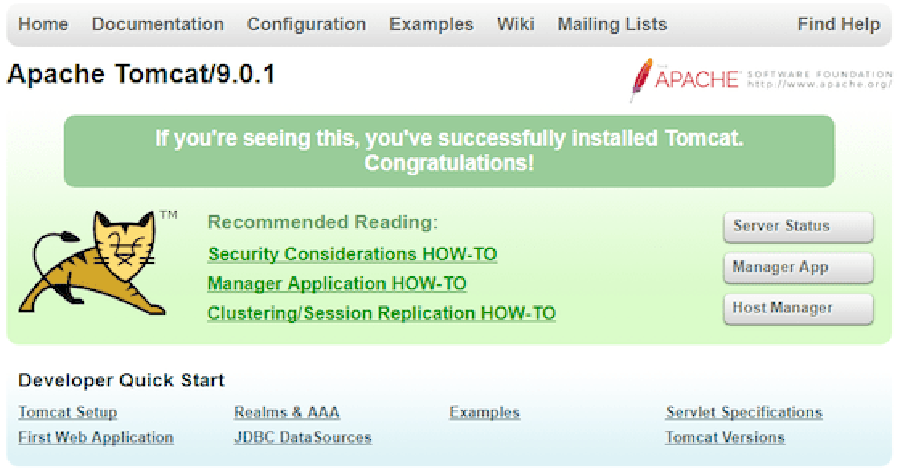
Tomcat server default works on port 8080. Access tomcat in the web browser by connecting your server on port 8080. If you are using a firewall, please open port 80 to enable access to the control panel:

http://your-domain.com:8080

apache-tomcat9
Congratulation’s! You have successfully installed Apache Tomcat. Thanks for using this tutorial for installing Apache Tomcat 9 in Ubuntu 18.04 LTS system. For additional help or useful information, we recommend you to check the official Apache Tomcat web site.

How To Install Apache Subversion on Ubuntu 18.04 LTS

Install Apache Subversion on Ubuntu 18

Subversion is an open source version control system. It helps you keep track of a collection of files and folders. Any time you change, add or delete a file or folder that you manage with Subversion, you commit these changes to your Subversion repository, which creates a new revision in your repository reflecting these changes. You can always go back, look at and get the contents of previous revisions. SVN supports several protocols for network access: SVN, SVN+SSH, HTTP, HTTPS. If you are behind a firewall, HTTP-based Subversion is advantageous since SVN traffic will go through the firewall without any additional firewall rule setting.

This article assumes you have at least basic knowledge of linux, know how to use the shell, and most importantly, you host your site on your own VPS. The installation is quite simple and assumes you are running in the root account, if not you may need to add ‘sudo’ to the commands to get root privileges. I will show you through the step by step installation Subversion on a 18.04 LTS (Bionic Beaver) server.

Install Apache Subversion on Ubuntu 18.04 LTS Bionic Beaver

Step 1. First make sure that all your system packages are up-to-date by running these following apt-get commands in the terminal.

sudo apt-get update
sudo apt-get upgrade.

Step 2. Installing Apache web server.

First you need to install Apache web server to access svn server using http urls:

apt-get install apache2

Step 3. Installing Apache Subversion on Ubuntu 18.04 LTS.

Use following command to install subversion packages and there dependencies. Also install svn module for Apache libapache2-mod-svn packages on your system:

apt install subversion subversion-tools libapache2-mod-svn
a2enmod dav
a2enmod dav_svn

Step 4. Configure Apache for Subversion.

Subversion Apache module package creates an configuration file /etc/apache2/mods-enabled/dav_svn.conf. You just need to make necessary changes to it:

### nano /etc/apache2/mods-enabled/dav_svn.conf

Alias /svn /var/lib/svn
&lt;Location /svn&gt;
    DAV svn
    SVNParentPath /var/lib/svn

    AuthType Basic
    AuthName "Subversion Repository"
    AuthUserFile /etc/apache2/dav_svn.passwd
&lt;/Location&gt;

After making above changes, restart Apache service:

systemctl restart apache2

Step 5. Create First SVN Repository.

Create your first svn repository named firstrepo, You can use any suitable name:

mkdir -p /var/lib/svn/
svnadmin create /var/lib/svn/testrepo
chown -R www-data:www-data /var/lib/svn
chmod -R 775 /var/lib/sv

Step 6. Create account and password for SVN.

Following commands will add two users for svn. It will prompt for users password to be assigned.

htpasswd -m /etc/apache2/dav_svn.passwd wpcademy
htpasswd -m /etc/apache2/dav_svn.passwd ramona

Let’s restart Apache service again:

systemctl restart apache2

Step 7. Accessing Repository in Browser.

Subversion will be available on HTTP port 80 by default. Open your favorite browser and navigate to http://yourdomain.com/svn/testrepo/ or http://your-server-ip/svn/testrepo/ and will prompt for authentication. Use login credentials created in Step 6. If you are using a firewall, please open port 80 to enable access to the control panel.

Congratulation’s! You have successfully installed Apache SVN. Thanks for using this tutorial for installing Subversion on Ubuntu 18.04 LTS (Bionic Beaver) system. For additional help or useful information, we recommend you to check the official Apache Subversion web site.

How To Install Jenkins on Ubuntu 18.04 LTS

Install Jenkins on Ubuntu 18

Subversion is an open source version control system. It helps you keep track of a collection of files and folders. Any time you change, add or delete a file or folder that you manage with Subversion, you commit these changes to your Subversion repository, which creates a new revision in your repository reflecting these changes. You can always go back, look at and get the contents of previous revisions. SVN supports several protocols for network access: SVN, SVN+SSH, HTTP, HTTPS. If you are behind a firewall, HTTP-based Subversion is advantageous since SVN traffic will go through the firewall without any additional firewall rule setting.

This article assumes you have at least basic knowledge of linux, know how to use the shell, and most importantly, you host your site on your own VPS. The installation is quite simple and assumes you are running in the root account, if not you may need to add ‘sudo’ to the commands to get root privileges. I will show you through the step by step installation Subversion on a 18.04 LTS (Bionic Beaver) server.

Install Apache Subversion on Ubuntu 18.04 LTS Bionic Beaver

Step 1. First make sure that all your system packages are up-to-date by running these following apt-get commands in the terminal.

sudo apt-get update
sudo apt-get upgrade

Step 2. Installing Apache web server.

First you need to install Apache web server to access svn server using http urls:

apt-get install apache2

Step 3. Installing Apache Subversion on Ubuntu 18.04 LTS.

Use following command to install subversion packages and there dependencies. Also install svn module for Apache libapache2-mod-svn packages on your system:

apt install subversion subversion-tools libapache2-mod-svn
a2enmod dav
a2enmod dav_svn

Step 4. Configure Apache for Subversion.

Subversion Apache module package creates an configuration file /etc/apache2/mods-enabled/dav_svn.conf. You just need to make necessary changes to it:

### nano /etc/apache2/mods-enabled/dav_svn.conf

Alias /svn /var/lib/svn
<Location /svn>
    DAV svn
    SVNParentPath /var/lib/svn

    AuthType Basic
    AuthName "Subversion Repository"
    AuthUserFile /etc/apache2/dav_svn.passwd
</Location>

After making above changes, restart Apache service:

systemctl restart apache2

Step 5. Create First SVN Repository.

Create your first svn repository named firstrepo, You can use any suitable name:

mkdir -p /var/lib/svn/
svnadmin create /var/lib/svn/testrepo
chown -R www-data:www-data /var/lib/svn
chmod -R 775 /var/lib/sv

Step 6. Create account and password for SVN.

Following commands will add two users for svn. It will prompt for users password to be assigned.

htpasswd -m /etc/apache2/dav_svn.passwd wpcademy
htpasswd -m /etc/apache2/dav_svn.passwd ramona

Let’s restart Apache service again:

systemctl restart apache2

Step 7. Accessing Repository in Browser.

Subversion will be available on HTTP port 80 by default. Open your favorite browser and navigate to http://yourdomain.com/svn/testrepo/ or http://your-server-ip/svn/testrepo/ and will prompt for authentication. Use login credentials created in Step 6. If you are using a firewall, please open port 80 to enable access to the control panel.

Congratulation’s! You have successfully installed Apache SVN. Thanks for using this tutorial for installing Subversion on Ubuntu 18.04 LTS (Bionic Beaver) system. For additional help or useful information, we recommend you to check the official Apache Subversion web site.

How To Install Git on Ubuntu 18.04 LTS

Install Git on Ubuntu 18

Git is a free and open source distributed version control system . Git 2.16.2 comes with the large number of updates verses previous release 2.15. It is designed to handle a small to very large projects with speed and efficiency.

This article assumes you have at least basic knowledge of Linux, know how to use the shell, and most importantly, you host your site on your own VPS. The installation is quite simple and assumes you are running in the root account, if not you may need to add ‘sudo’ to the commands to get root privileges. I will show you through the step by step installation Git on a Ubuntu 18.04 (Bionic Beaver) server.

Install Git on Ubuntu 18.04 LTS Bionic Beaver

Step 1. First make sure that all your system packages are up-to-date by running these following apt-get commands in the terminal.

sudo apt-get update
sudo apt-get upgrade

Step 2. Installing Git on Ubuntu 18.04 LTS.

Method 1. Install Git on Ubuntu from repository.


sudo apt install git -y

To check current version installed of Git use following command:

[[email protected] ~]# git --version
git version 2.15.1

Method 2. Install Git on Ubuntu from Source Code

First, install all prerequisites:

sudo apt install make libssl-dev libghc-zlib-dev libcurl4-gnutls-dev libexpat1-dev gettext unzip
sudo wget https://github.com/git/git/archive/v2.16.2.zip
sudo unzip v2.16.2.zip

Next, compile the previously downloaded git source code and install git binaries:

cd git-2.16.2
make prefix=/usr/local all
sudo make prefix=/usr/local install

Confirm Git the installation . Run the following command to verify which version of git is installed:

[[email protected] ~]# git --version
git version 2.16.2

Congratulation’s! You have successfully installed Git. Thanks for using this tutorial for installing Git in Ubuntu 18.04 LTS (Bionic Beaver) systems. For additional help or useful information, we recommend you to check the official Git web site.

How To Install VMware Workstation on Ubuntu 18.04 LTS

Install VMware Workstation on Ubuntu 18

VMware Workstation is the most popular Virtualization software used at the desktop level on Linux like operating systems and Microsoft Windows. It allows the us to create and run multiple Virtual machines simultaneously. VMware Workstation is not an open source or free software so we need to buy its license key, though we can use its trail version for 30 days then later you can apply its license key.

This article assumes you have at least basic knowledge of Linux, know how to use the shell, and most importantly, you host your site on your own VPS. The installation is quite simple and assumes you are running in the root account, if not you may need to add ‘sudo’ to the commands to get root privileges. I will show you through the step by step installation VMware Workstation on an Ubuntu 18.04 Bionic Beaver server.

Install VMware Workstation on Ubuntu 18.04 LTS Bionic Beaver

Step 1. First make sure that all your system packages are up-to-date by running these following apt-get commands in the terminal.

sudo apt-get update
sudo apt-get upgrade
sudo apt-get install gcc build-essential

Step 2. Installing VMware Workstation on Ubuntu 18.04 LTS.

First download the Vmware Workstation 14 Pro bundle package here.

Once the VMware workstation bundle file is downloaded, set the executable permissions on it with the below chmod command:

chmod a+x VMware-Workstation-Full-14.1.2-8497320.x86_64.bundle

Run the commands below to execute the installation of Vmware Workstation 14 pro by running the .bundle package. Refer the command below:

sudo ./VMware-Workstation-Full-14.1.2-8497320.x86_64.bundle

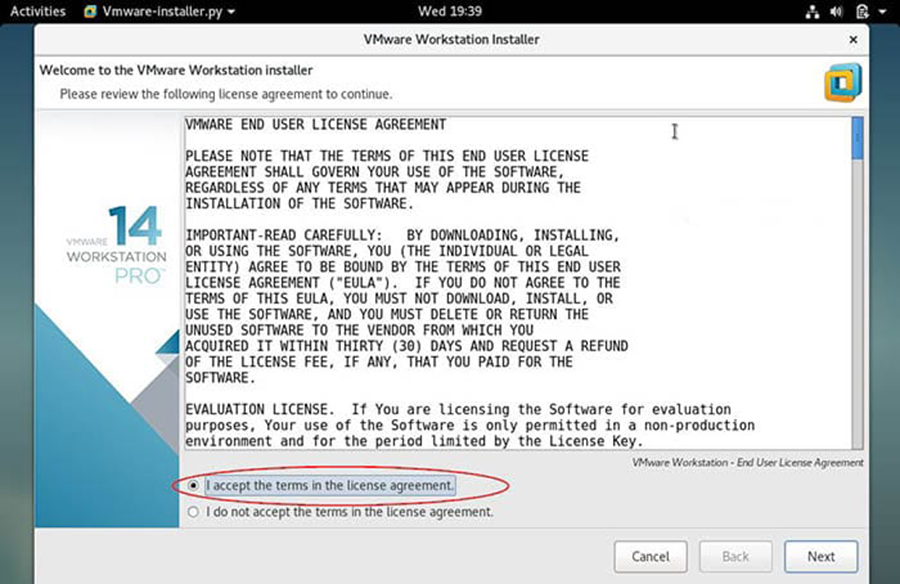
Accept the End User License Agreement:

End-User-License-Agreement-VMware-Workstation

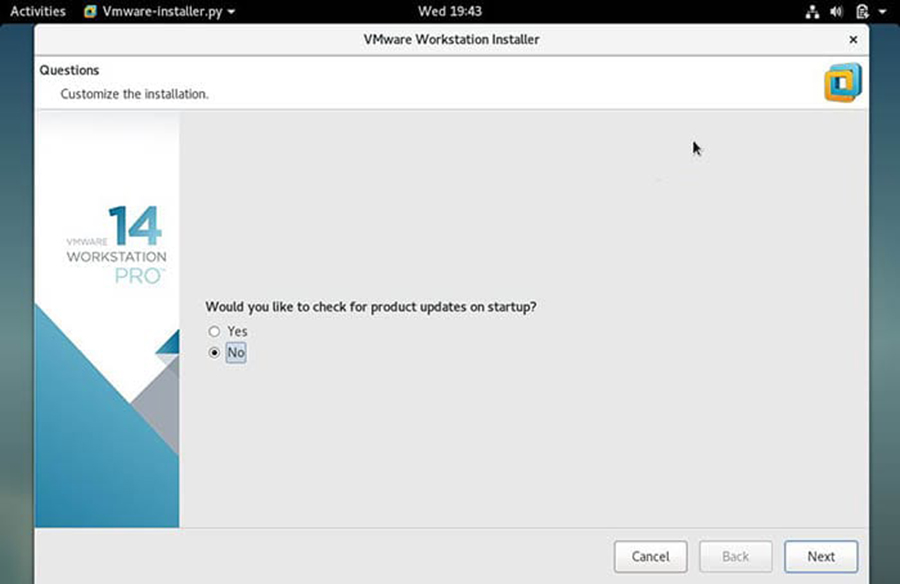
Click on Next and disable product updates on startup:

VMware-Workstation-Product-Updates 2

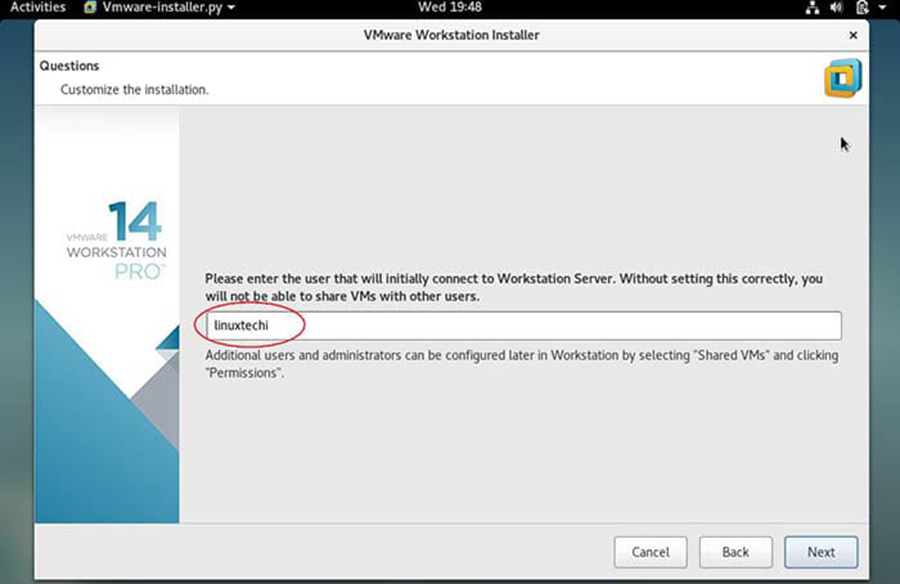
Specify the User Name which will have rights to connect to VMware workstation, in my case I using ‘wpcademy‘ as user name:

Linuxtechi-User-VMware-Workstation 3

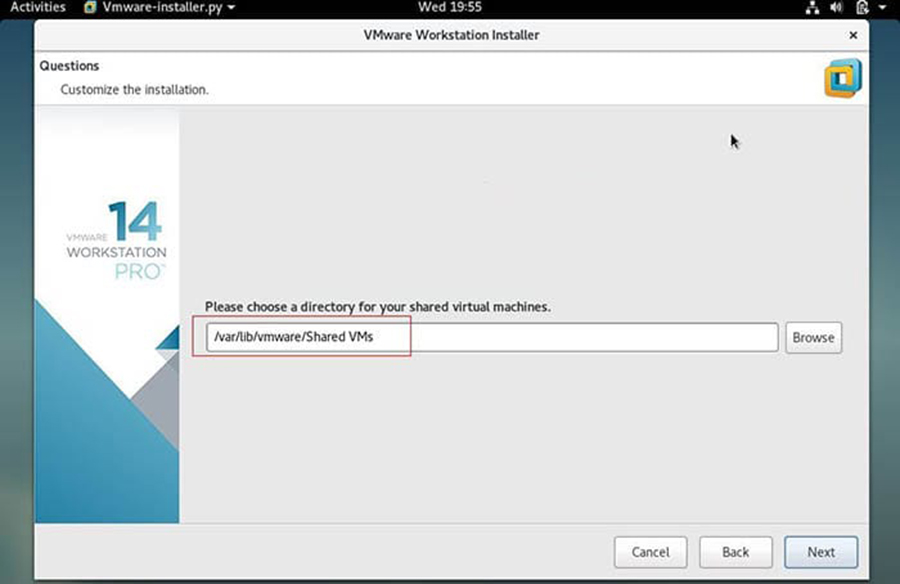
Click on next to proceed, you can also keep the default path. In my case I am also keeping the default directory:

Virtual-Machine-Storing-Path-VMware-WorkStation 4

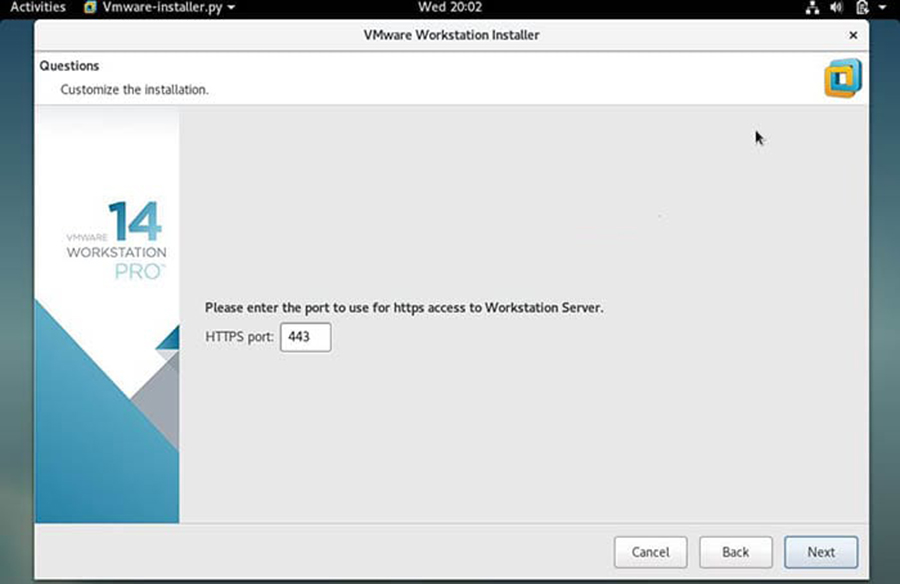
Specify the HTTPs port or keep default one:

HTTPs-Port-Debian9-VMware-Workstation 5

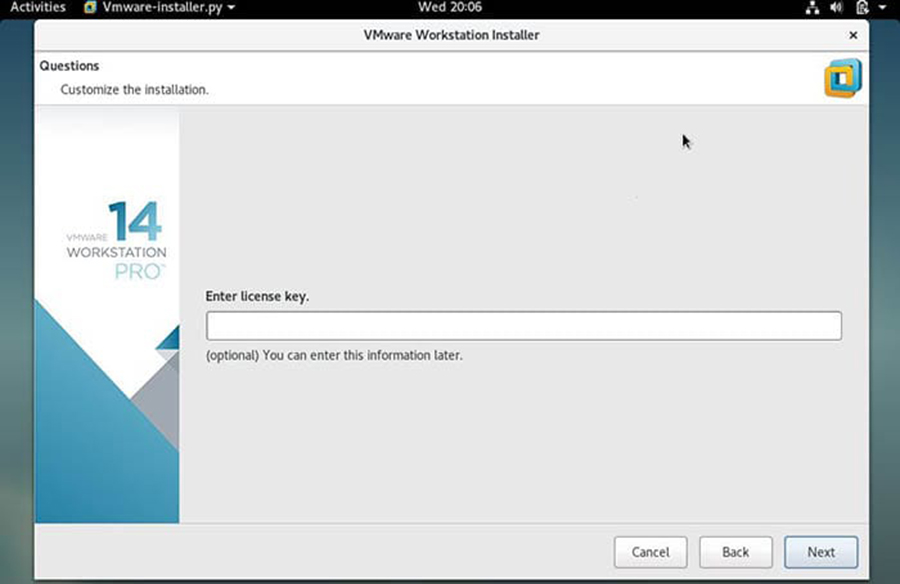
Enter the License key in case you have already buy its license, else you can leave it blank:

License-Key-Debian9-VMware-Workstation 6

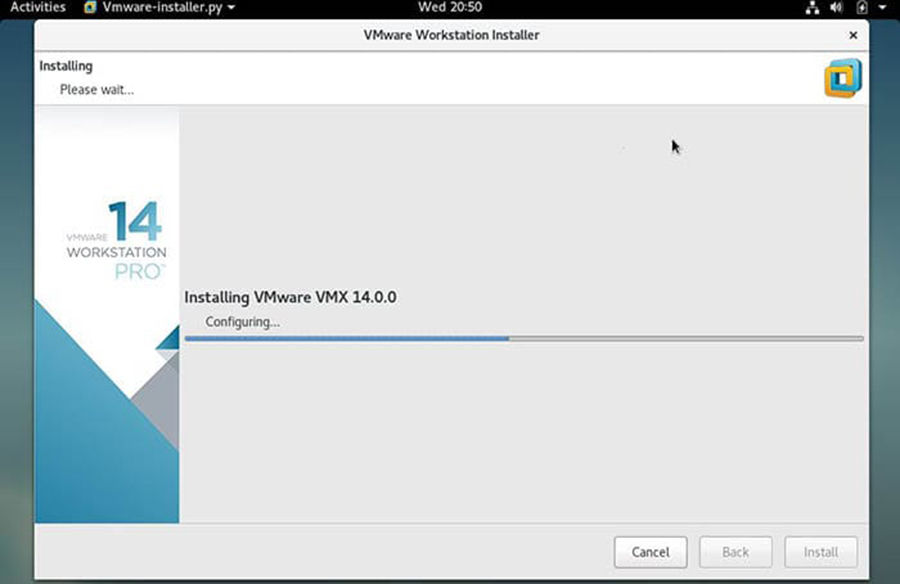
In the next window, click on ‘Install‘ option to start its installation:

VMware-Workstation-Installation-Progress7
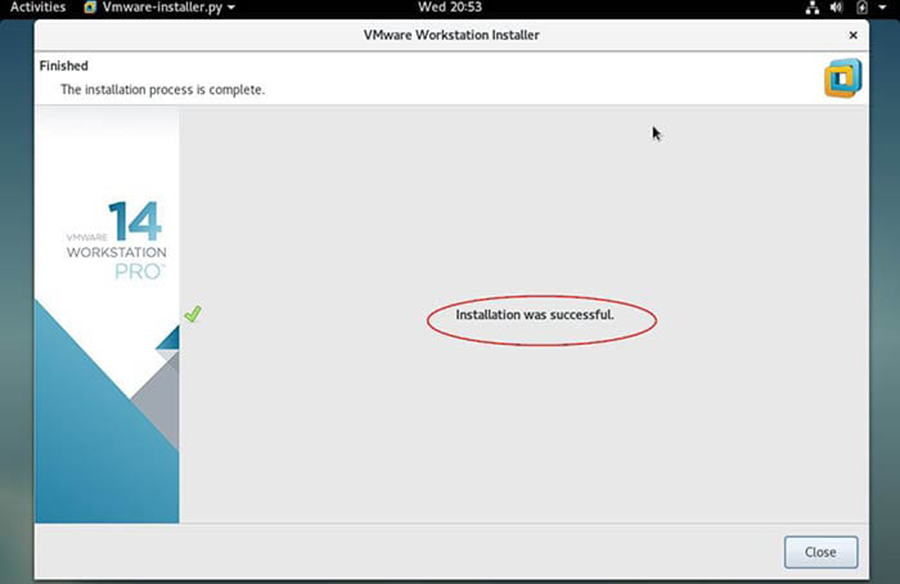
Once the Installation is successful, we will get the below window:

VMware-Workstation-Installation-Completed8

Congratulation’s! You have successfully installed VMware Workstation. Thanks for using this tutorial for installing VMware Workstation on your Ubuntu 18.04 Bionic Beaver system. For additional help or useful information, we recommend you to check the official VMware web site.